There are two DNS management interfaces at PulseHeberg, depending on your type of service. Both interfaces work in a very similar way, which we will cover in this article. At the end of the article you will find a glossary of the different DNS record types that exist, along with how they are used.
You have a WEB hosting plan (WEB-5 or WEB-25) linked to this domain#
The DNS zone is managed by Plesk, so you need to set up the following DNS servers:
- Primary DNS: ns1-hosting.pulseheberg.net
- Secondary DNS: ns2-hosting.pulseheberg.net
If you want to modify your zone, you can follow this guide.
You have no WEB hosting plan linked to this domain (domain only, or domain + VPS for example)#
Your DNS zone must therefore be managed from the PulseHeberg manager (right here).
All of our DNS management interfaces contain the same elements and work the same way:
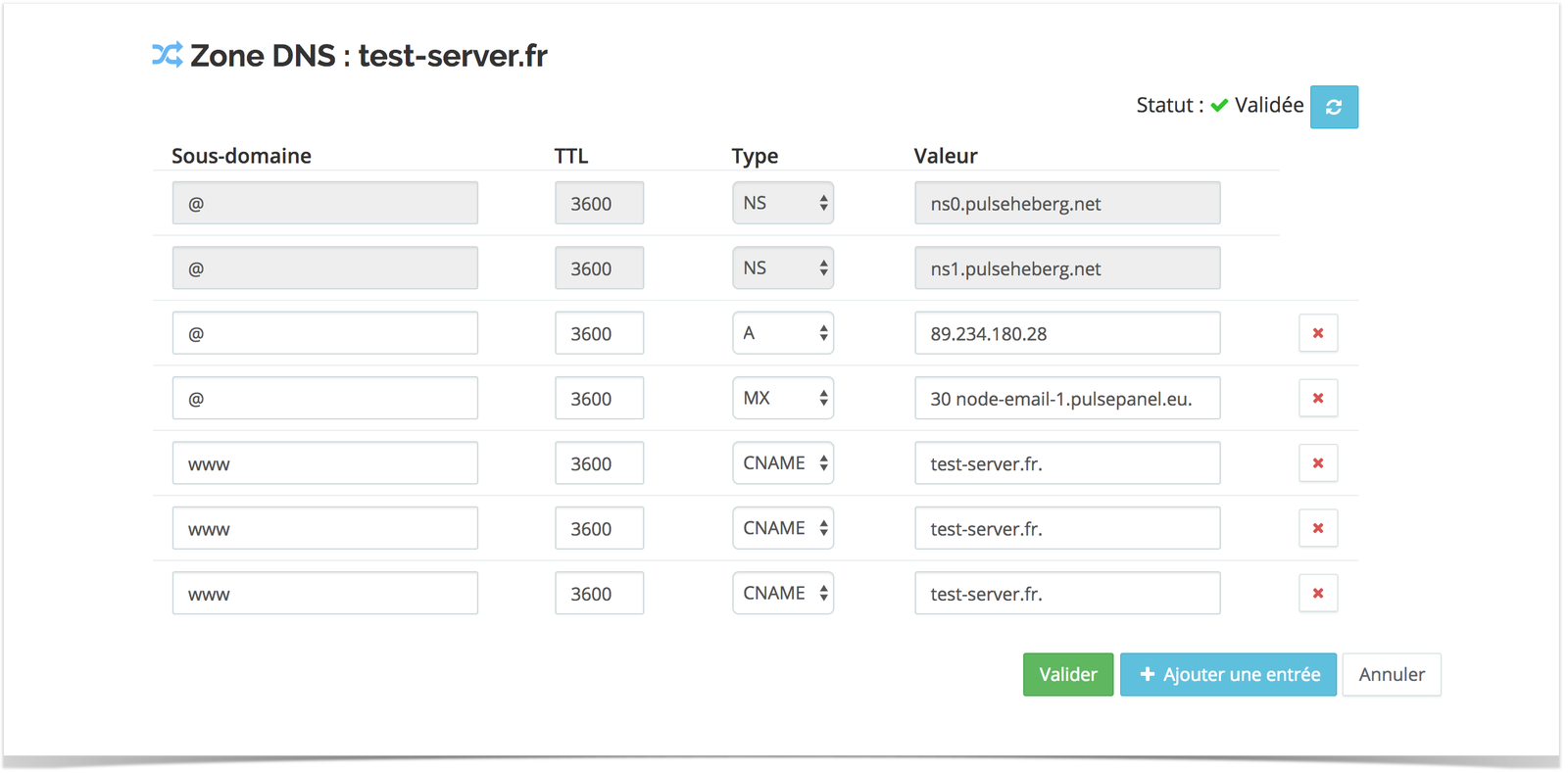
On each interface, you will find the following key elements:
- The subdomain column (The @ corresponds to the root, i.e. your domain without a subdomain)
- The TTL column (this is the theoretical lifetime of the records. The default value of 3600 is theoretically sufficient for most uses)
- The record type (you will find a glossary at the bottom of this article)
- The value of the record. This is usually an IP or a FQDN (a domain name, with a trailing dot)
- Each line corresponds to a different DNS record
- A button to add a line at the bottom of the page
- A save button at the bottom of the page
On interface 1 (PulseHeberg manager), you will also find at the top right the status of your DNS zone, which tells you whether it contains errors, or whether it is pending automatic validation.
As a reminder, a FQDN looks exactly like a domain name; its main difference is that it has a trailing dot (after the .fr, .com, etc.).
For example, the FQDN of google.com is simply google.com.
The different supported record types#
Our interfaces support the main DNS record types, namely:
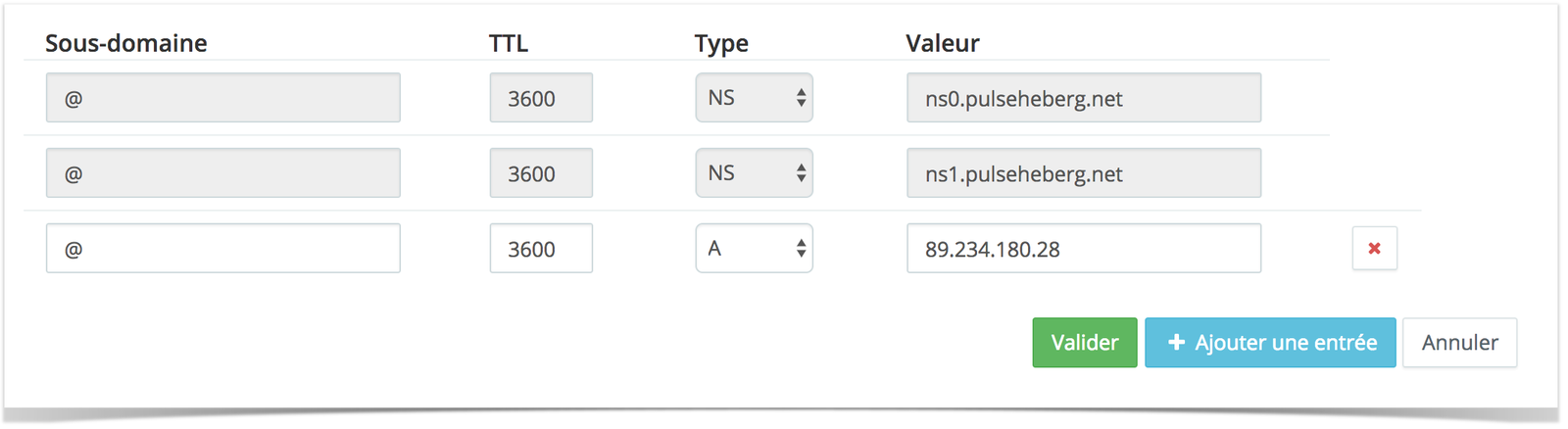
- The address record (type A and AAAA)
These are the basic records of DNS zones. They work in the simplest possible way: a subdomain points (entirely) to an IP address. A records correspond to IPv4 addresses, and AAAA records correspond to IPv6.
For example, if you want your users to be redirected to your VPS when they visit "http://vps.mondomaine.fr", simply put "vps" in the subdomain field and your VPS IP in the "value" field, selecting the "A" type. Note that you can only have one A record per subdomain. If you have several, your users will be randomly redirected to one or the other.
If, for example, you want to redirect "http://mondomaine.fr" directly to your VPS, simply replicate the same configuration, placing "@" in the "subdomain" field.
- The mail record (type MX)
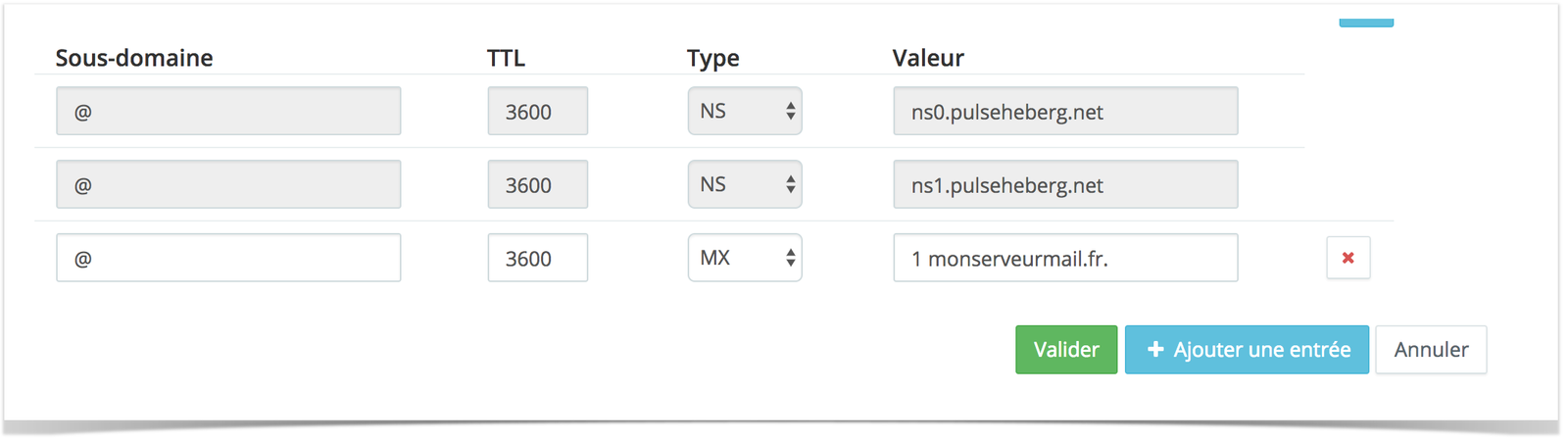
As the name suggests, the mail record (MX) is used to configure the routing of emails sent to your domain name. It is this record (and only this one) that mail servers read to determine which server the mail should be sent to. Its operation is very simple. In the subdomain field you enter the subdomain to configure (if it is the mail of @test.mondomaine.fr, simply enter "test" in subdomain; if it is the mail of @mondomaine.fr, you can put an @), and in the value field the FQDN of the mail server along with the priority. The priority is a positive integer that defines a priority order for this record. This way, you can place several MX records to ensure redundancy (if you have several servers).
If you do not know what priority to use, simply enter "1" followed by the FQDN of your server, as shown below
- The alias/canonical record (type CNAME)
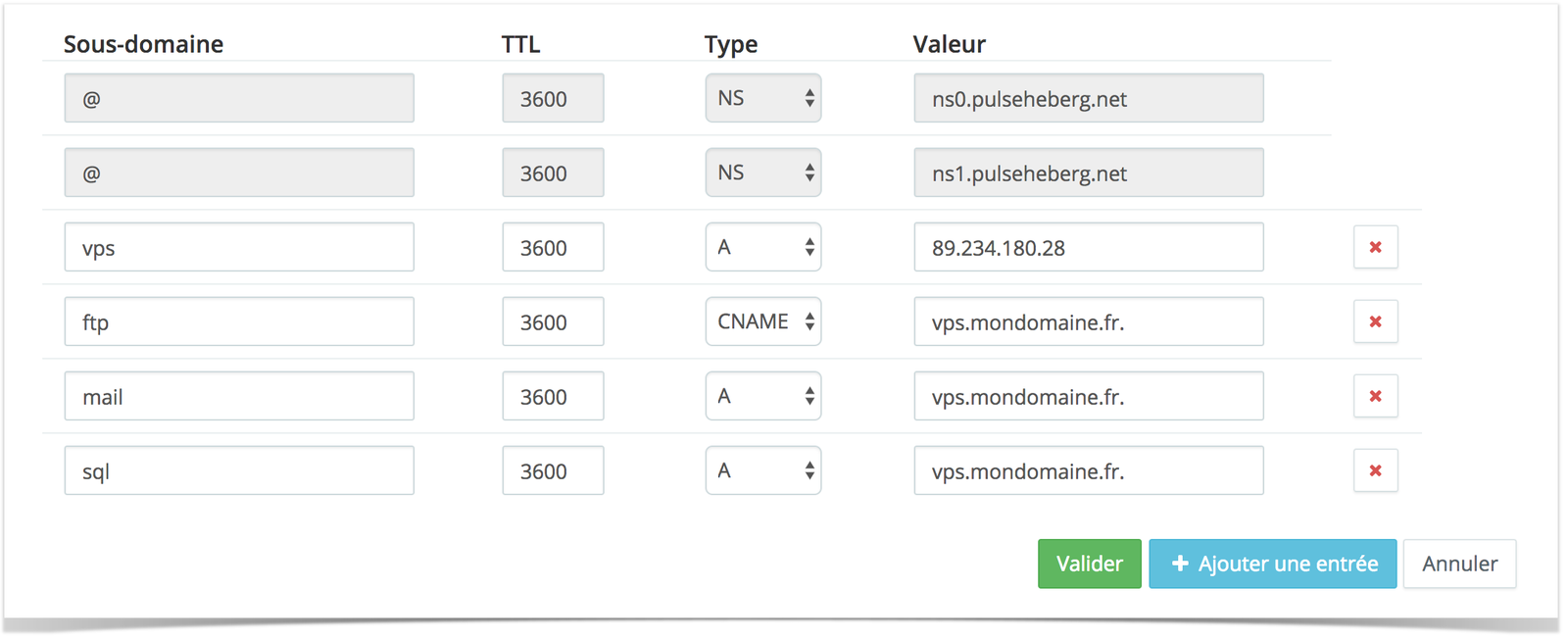
The CNAME record simply works as an alias. Instead of entering an IP, you enter a FQDN, and your user will be redirected to the IP that this FQDN points to. This allows you to avoid entering your IP address many times. Note that this is not a redirect. The URL displayed in the browser (for example) will not be updated, it is completely transparent. This allows you, for example, to create configurations like the one below. If you change the IP of the 3rd line below, it will also be replaced automatically on the following lines.
- The text record (type TXT)
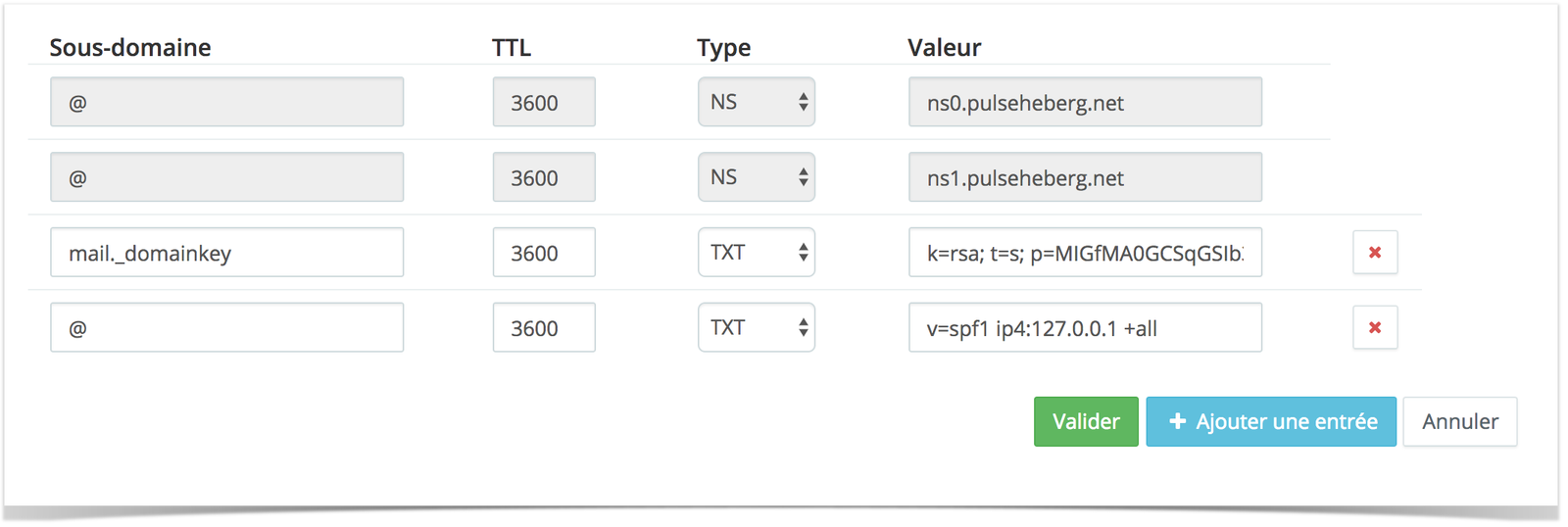
Again, as the name suggests, this record allows you to create text zones containing data for your domain. This kind of record is not useful for most uses, but it is essential in certain cases (DKIM, SPF configuration, etc.). It has no notable peculiarities, except that at PulseHeberg you do not need to add quotes around these values (any quotes you add will be automatically removed). Below you will find an example of a DKIM and SPF configuration on our interface
- The service record (type SRV)
This is a fairly complex record to handle, as it takes many parameters into account.
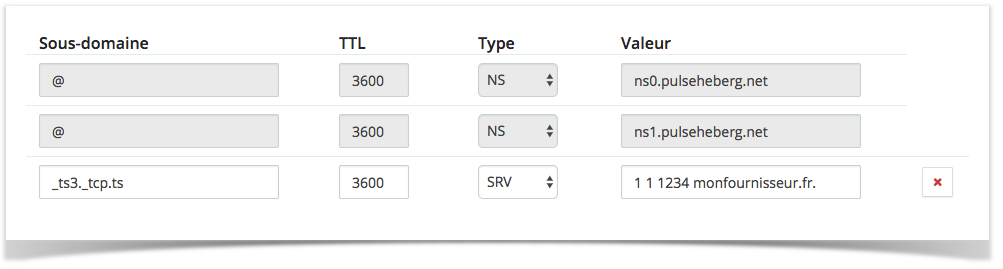
First, its subdomain is made up of three parameters: the service type, the protocol (udp or tcp), and the subdomain itself. So, if you want to configure a TeamSpeak 3 service on the subdomain "ts.mondomaine.fr", the subdomain field must be filled in like this: "_ts3._tcp.ts". _ts3 represents your application (TeamSpeak 3), _tcp represents the tcp protocol, and .ts represents the subdomain itself. You also need to configure the value of the record with several parameters: the priority, the weight, the port, and the target FQDN. As a general rule, the first two values are not useful if you only have one SRV record on the subdomain. You can therefore leave them at 1. The port is simply the port of your application to use, and the FQDN target represents the destination server.
Thus, the following example lets you redirect a TeamSpeak 3 server hosted at "monfournisseur.fr" on port 1234: