
Problem encountered#
You are experiencing slowdowns with your Linux server
Cause#
It is likely that your server is saturating one of its resources: CPU, RAM, disk I/O or network. This may be caused by a process consuming a lot of resources.
Solution#
Check the CPU load#
- Connect to your VPS server via SSH
- Run the command
top -o %CPU, which lets you check the CPU consumption of each process.
For example:
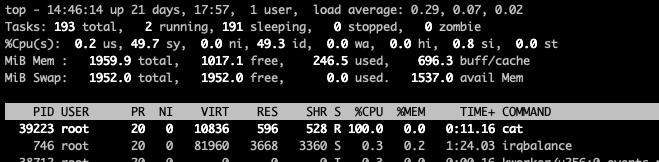
In our example we can see that the cat process is consuming 100% of our server's CPU, so it is probably the cause of the problem.
- You can kill the process in question by taking the PID from the first column:
kill -9 39223 - Check again whether the CPU consumption is back to normal with the command
top -o %CPU:
For example:
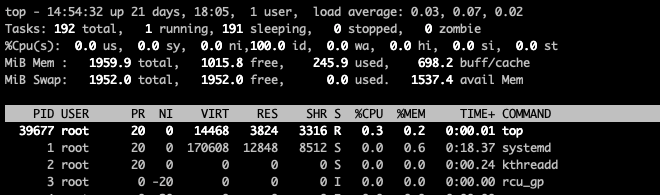
In our example the problem is indeed resolved, we no longer have high CPU consumption.
Check the RAM load#
- Connect to your VPS server via SSH
- Run the command
top -o %MEM, which lets you check the memory consumption of each process.
For example:
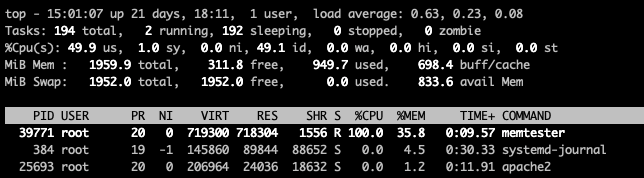
In our example we can see that the memtester process is consuming 35% of our server's RAM, so it is probably the cause of the problem.
- You can kill the process in question by taking the PID from the first column:
kill -9 39771 - Check again whether consumption is back to normal with the command
top -o %MEM:
In our example the problem is indeed resolved, we no longer have high RAM consumption.
Check the disk I/O load#
- Connect to your VPS server via SSH
- Install iotop on your VPS with the command
apt install iotop -yon Debian/Ubuntu oryum install iotop -yon Centos. - Run the command
iotop, which lets you check the overall I/O consumption as well as the consumption of each process.
For example:

In our example we can see that the dd process is consuming 64% of the I/O and writing 366M/s to our server's disks, so it is probably the cause of the problem.
- You can kill the process in question by taking the TID from the first column:
kill -9 39963 - Check again whether the I/O consumption is back to normal with the command
iotop:

In our example the problem is indeed resolved, we no longer have high disk I/O consumption.
Check the network load#
- Connect to your VPS server via SSH
- Install nload and nethogs on your VPS with the command
apt install nload nethogs -yon Debian/Ubuntu oryum install nload nethogs -yon Centos. - Run the command
nloadto check the overall network load of your server.
For example:
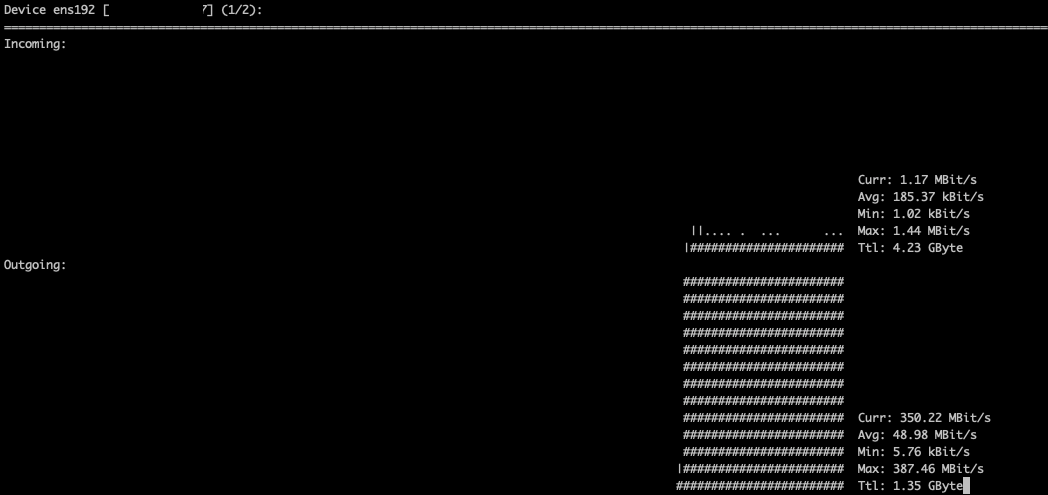
In our example we can see that our server is sending out 350Mb/s.
- Then run the command
nethogs, which lets you check network traffic process by process.
For example:

In our example we can see that the ssh process is the process with the most outgoing network activity. This seems to match the traffic observed with nload, so it is probably the cause of the problem.
- You can kill the process in question by taking the PID from the first column:
kill -9 41051 - Check again whether the network consumption is back to normal with the command
nload:
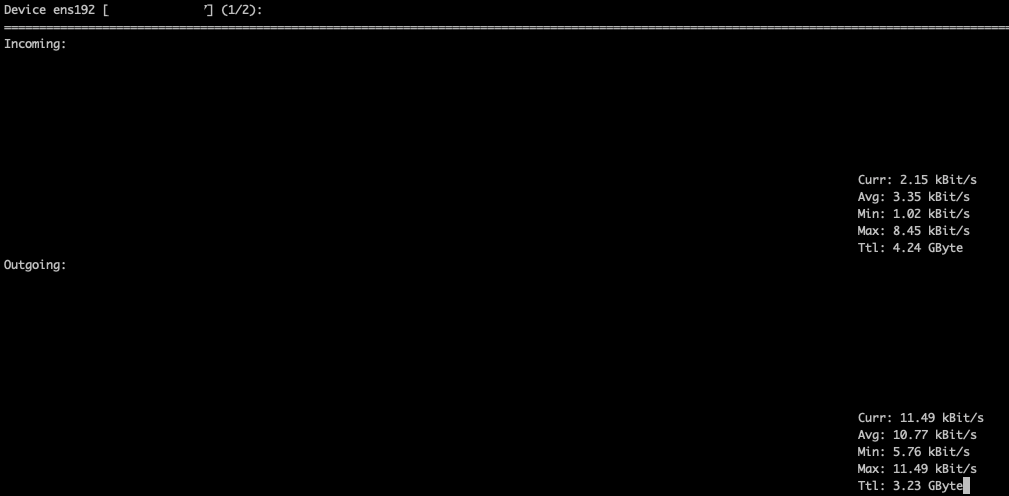
In our example the problem is indeed resolved, we no longer have high consumption on our server's network.
These checks do not identify the problem#
We invite you to contact the technical support so that we can perform an advanced check on our side of the cause of the slowdowns affecting your server.