
This guide explains how to set up your Collaborative Suite email account in the Thunderbird email client.
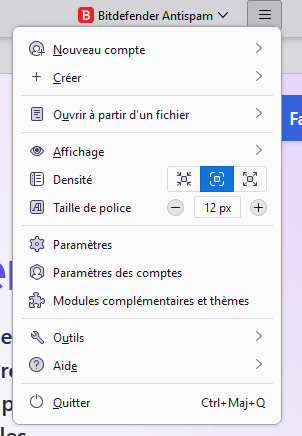
- In Thunderbird, click the "burger" menu (the three horizontal lines in the top right corner), then select Account Settings.
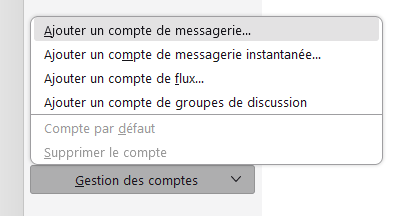
- In the tab that opens, at the bottom of the left column, under the Account Management section, click Add Mail Account....
- Enter your account details in the corresponding fields:
- Your full name
- Email address
- Password
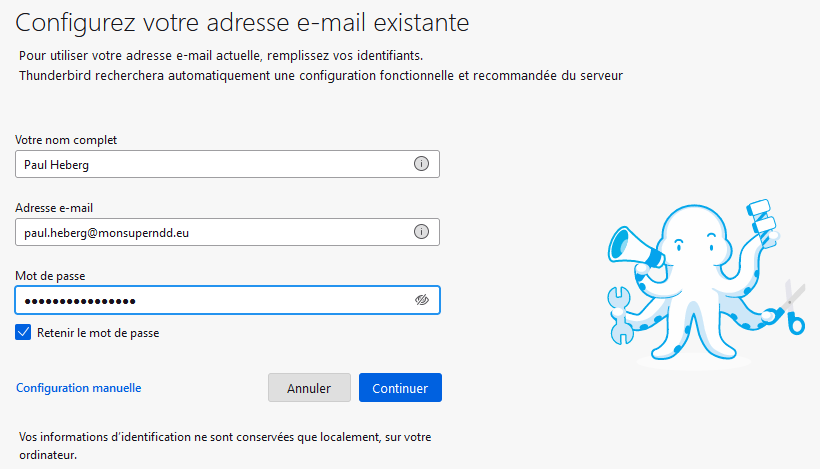
- Click the Configure manually button to specify the mail servers.
- Fill in the fields as follows. Warning: the username for both the incoming and outgoing servers must be your full email address.
Incoming server (IMAP)
- Hostname:
mail.collaborative.pulseheberg.net - Port:
993 - Connection security:
SSL/TLS - Authentication method:
Mot de passe normal
Outgoing server (SMTP)
- Hostname:
mail.collaborative.pulseheberg.net - Port:
587 - Connection security:
STARTTLS - Authentication method:
Mot de passe normal
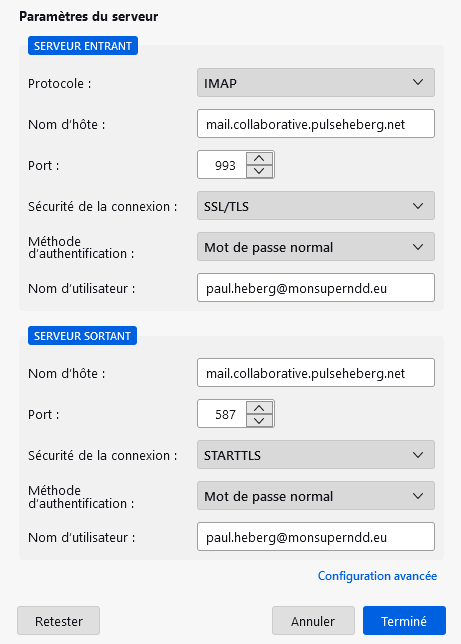
- Once all the settings are filled in, click Done.
Congratulations! Your email account is now set up in Thunderbird and ready to use.