This guide walks you through creating a new user account on your Collaborative Suite.
Step 1: Accessing user management#
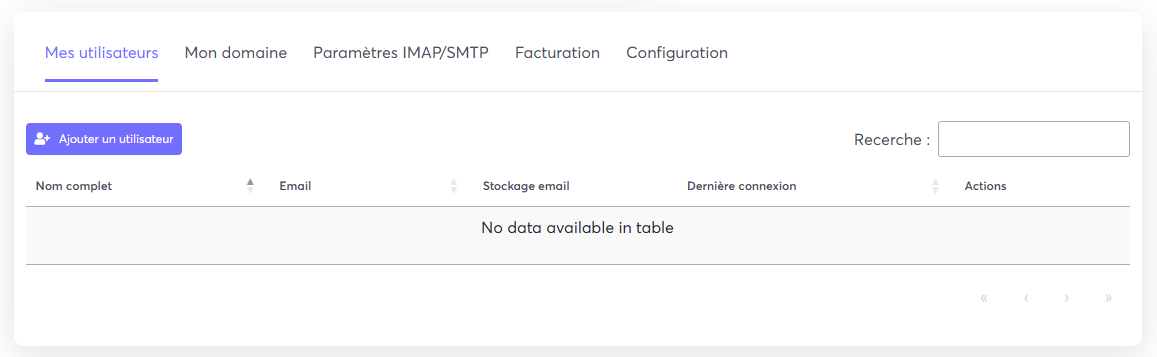
- From your customer area, go to the My users tab.
- There you will find the list of all accounts already created for your domain. By default, this list is empty.
Step 2: Adding a new user#
- To get started, click the Add a user button.
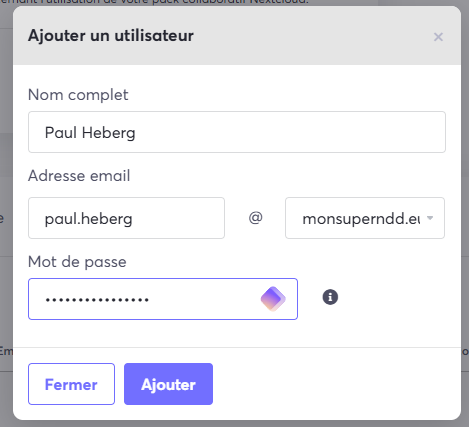
- A form appears, prompting you to enter the new account's information.
Step 3: Confirming the creation#
- Fill in the required fields (last name, first name, email address, password).
- Once the form is complete, click Add.
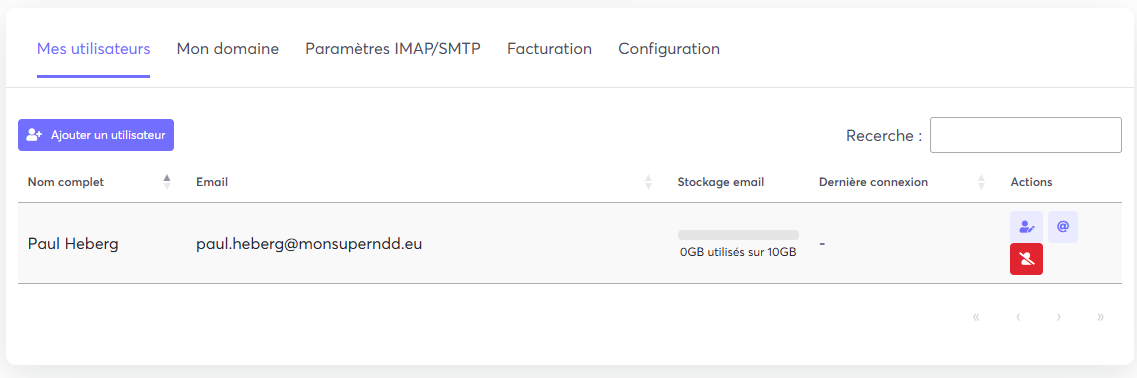
- A green confirmation message will appear, and the new account will show up in the main list.
Step 4: Logging in to the platform#
The creation is complete! You can now click Log in to the platform to access your Collaborative Suite interface using the email and password you just set.