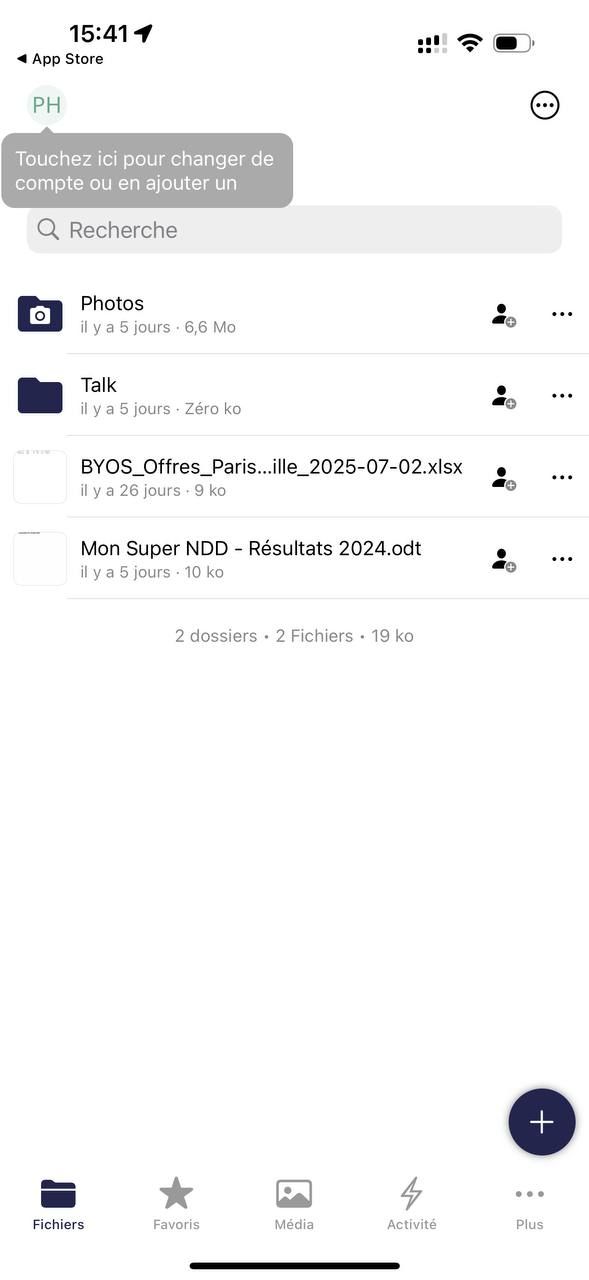
This guide shows you how to set up access to your Collaborative Suite from the Nextcloud app on your iPhone.
Step 1: Start the login#
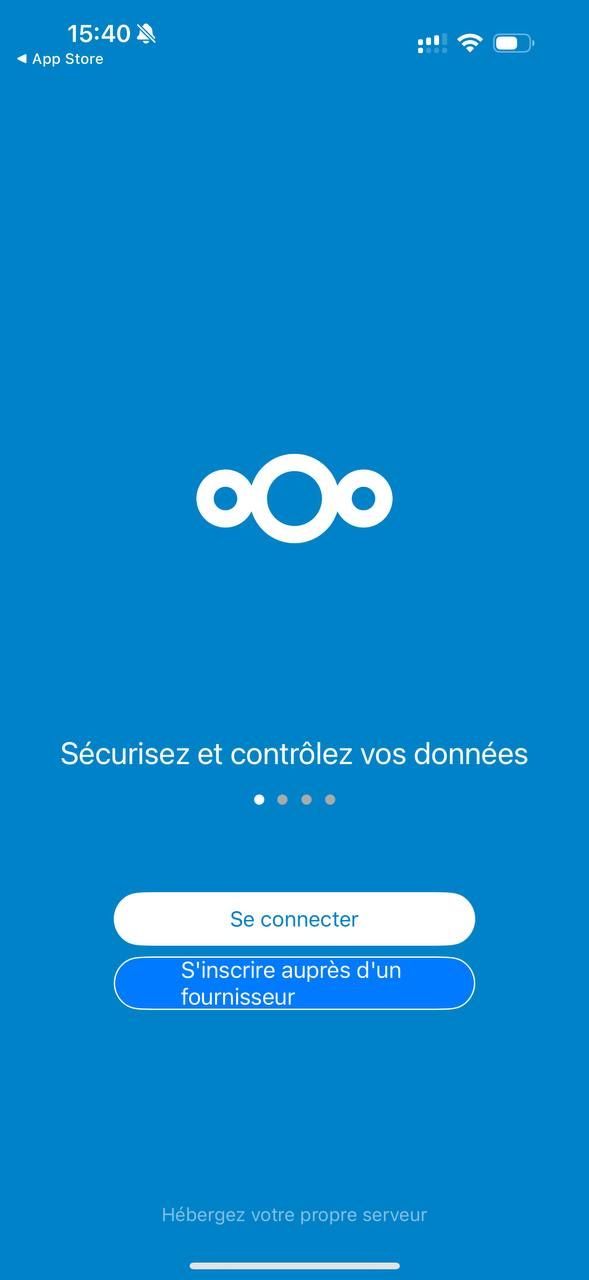
When you launch the Nextcloud app for the first time, a welcome screen appears. Tap the white Log in button.
Step 2: Enter the server address#
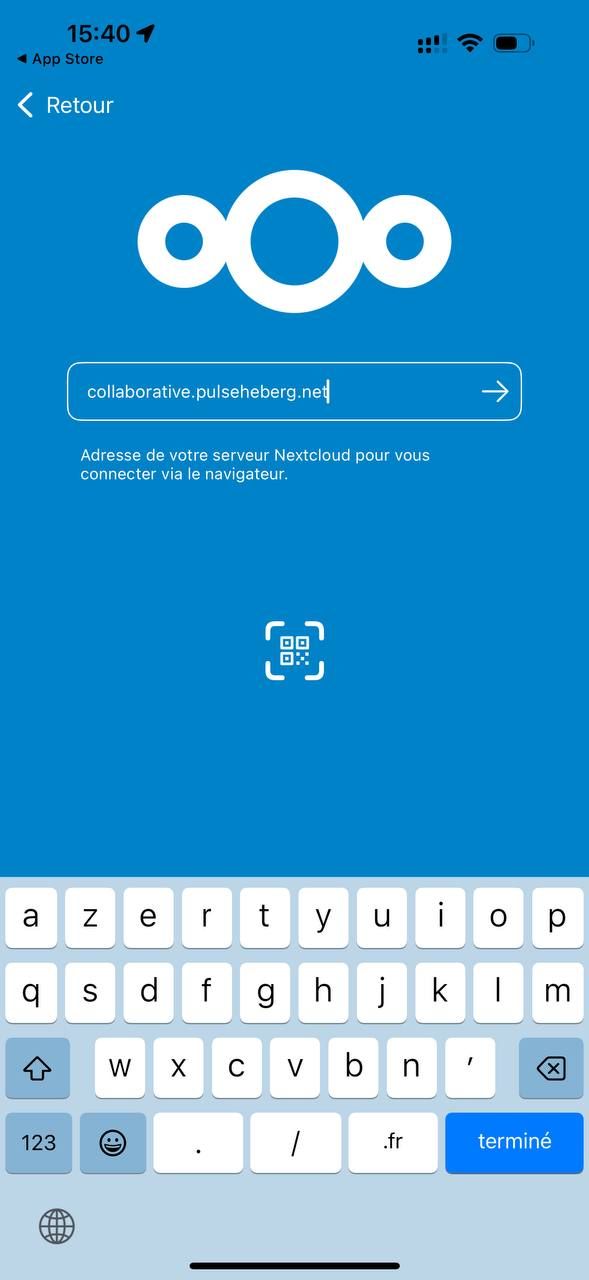
Enter your server address in the provided field. For this service, the address is collaborative.pulseheberg.net. Then tap the arrow on the right to continue.
Step 3: Start authentication#
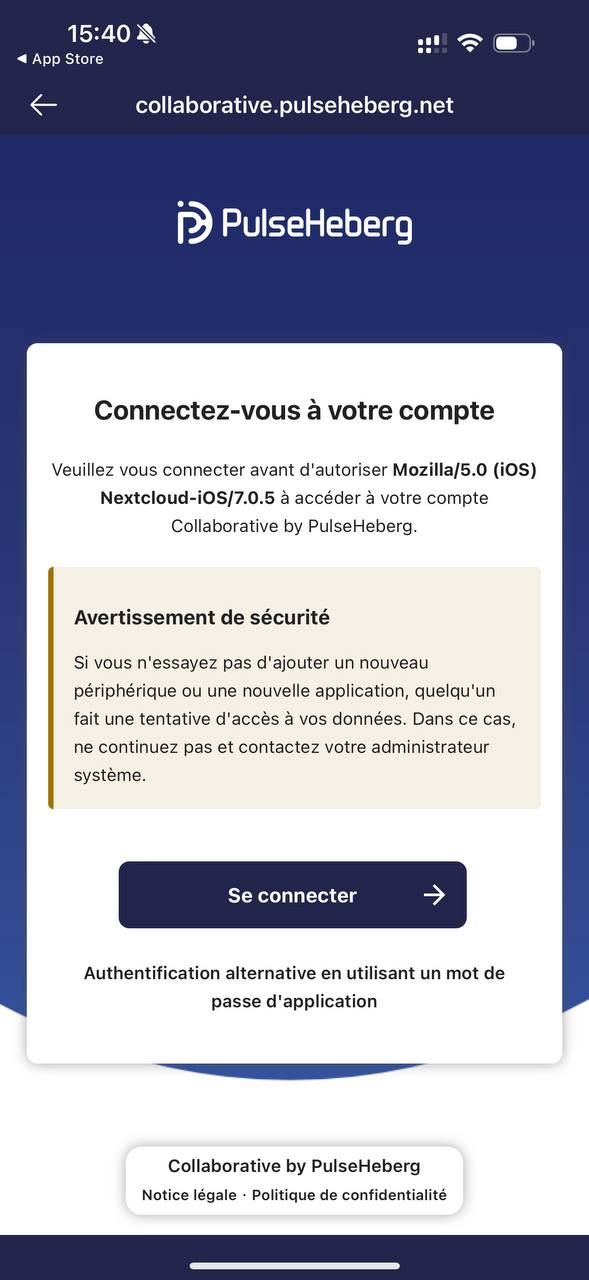
You are redirected to the login page of your service. A security warning may appear; this is a normal procedure for authorising a new application. Tap Log in.
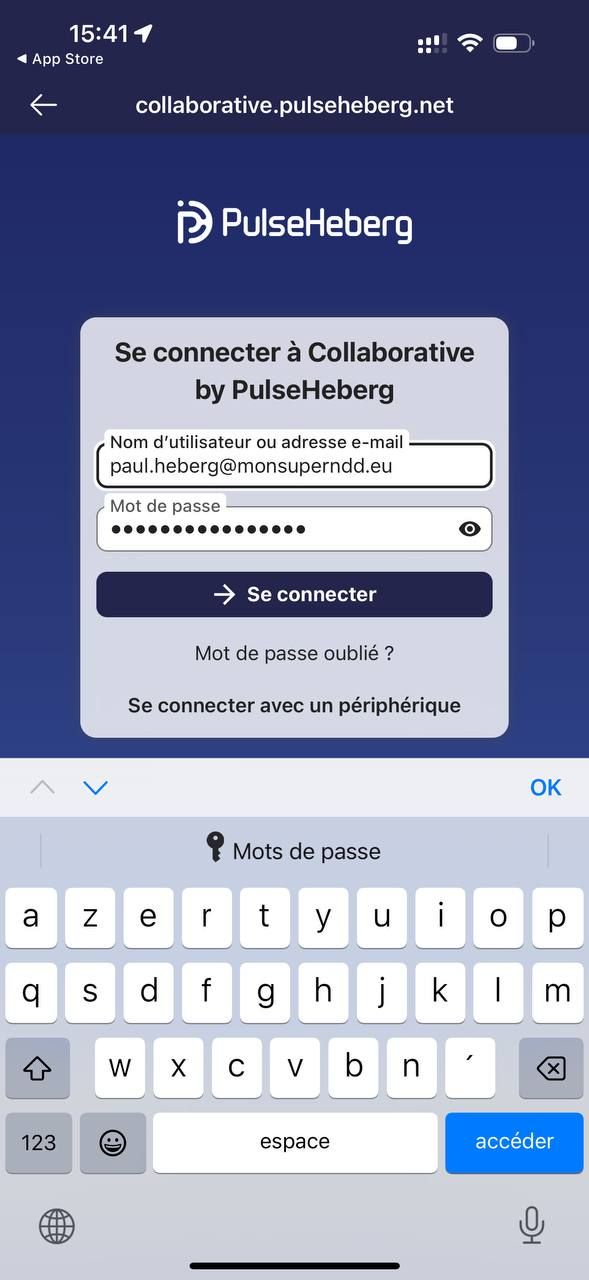
Step 4: Enter your credentials#
Enter your Username or email address and your Password. Then tap the → Log in button.
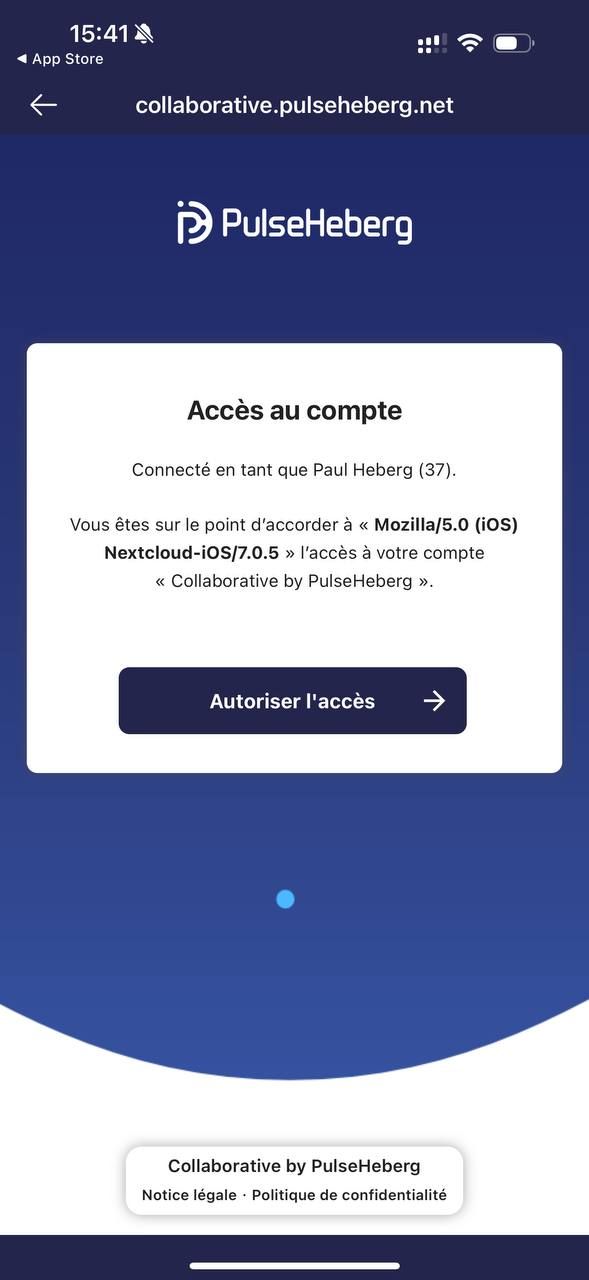
Step 5: Grant access#
The service asks you to confirm that you authorise the Nextcloud app to access your account. Tap Grant access.
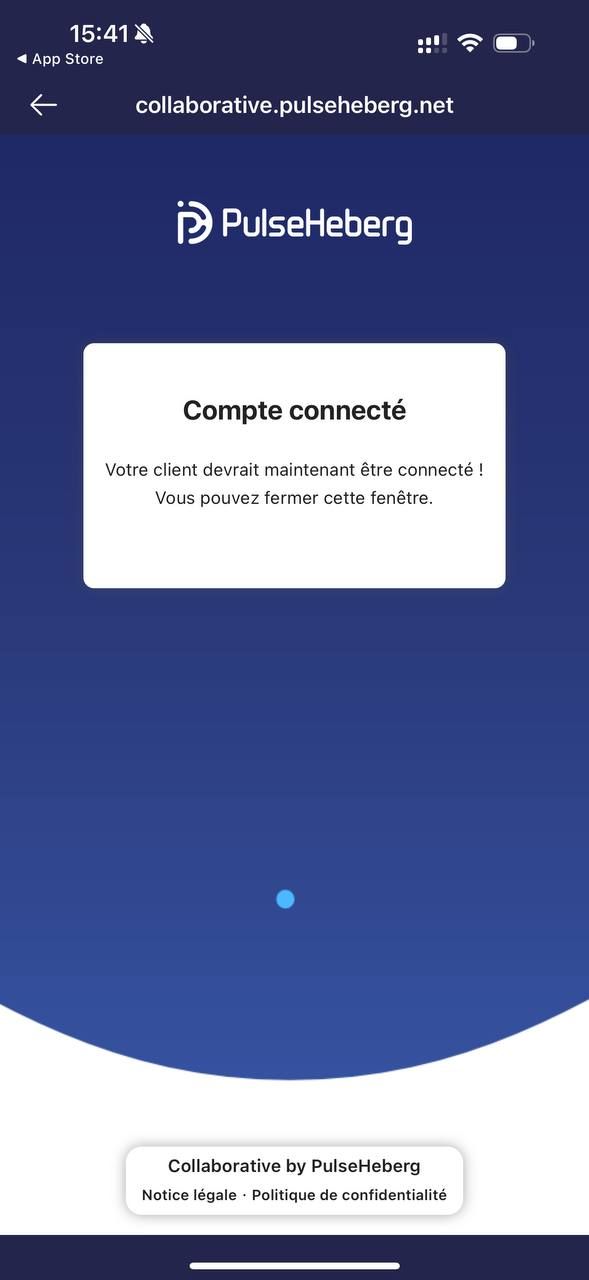
Step 6: Login successful#
A message confirms that your account is successfully logged in. The app will open automatically. The window closes automatically after a few seconds.
All done! 🎉#
You are now logged in to your account. You can browse your files, photos and other documents directly from the app.