We introduced NodeJS support on our hosting plans on 1 February 2023. This feature allows anyone who needs to run NodeJS applications on their web hosting to do so easily.
To configure NodeJS from your Plesk panel, simply go to the Development Tools section and click on NodeJS:
The next page lets you configure the elements of your application:
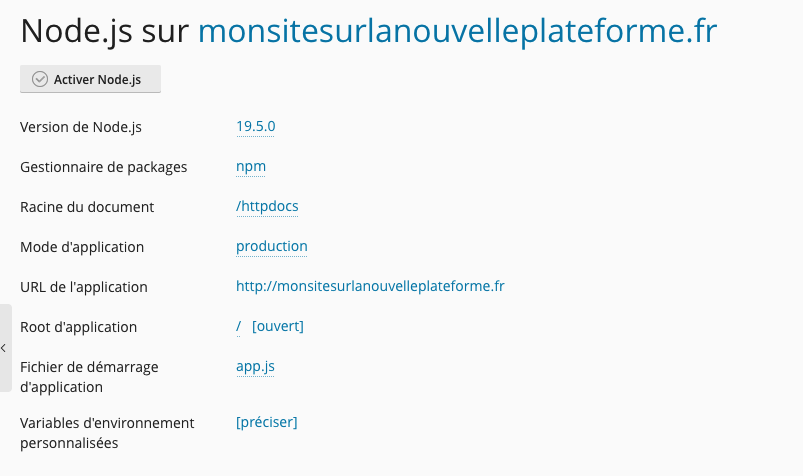
Here are the details of each option:
Node.js version: This option corresponds to the currently selected version of the runtime environment that will be used to run your application. Click on the version number to select a different version of Node.js.
Document root: Here you can set the document root directory of the domain. It can be a subdirectory of the main application directory, indicated below.
Application mode: You can choose "Development" or "Production", or enter a custom mode name. The NODE_ENV environment variable will reflect your choice.
Application URL: Click on this automatically generated URL to open the application in your browser.
Application root: By default, the application root path is the same as the domain's root directory. Click on "[open]" to access the contents of the application root directory using the file manager. In addition, in Plesk for Linux, you can click on the current application root path to set a custom one.
Application startup file: By default, the startup file name is app.js. Click on it to specify a custom name.
Custom environment variables: Here you can see the list of custom environment variables you have defined for your application (if any). Click on "[specify]" to add or remove environment variables for your application.
- Click Add Variable to add an environment variable to the list. Type the variable name in the left field and the desired value on the right.
- Edit existing variables by clicking on the corresponding field and typing the new name or value.
- Click Remove next to the desired variable in the list.
Click OK when you are done.
If the main application directory contains the package.json configuration file, two additional options are available:
- Install NPM. Installs the packages described in the package.json file.
- Run script. Runs a command specified in the "Scripts" section of the package.json file. Enter the name of the script to run along with any required parameters and click OK.
If your application includes the package.json, Gruntfile.js, gulpfile.js or webpack.config.js configuration files, they are visible in the "Configuration files access" section on the right. Click on the name of a configuration file to open and edit it.
When you have finished configuring your application, click Enable Node.js to start it:
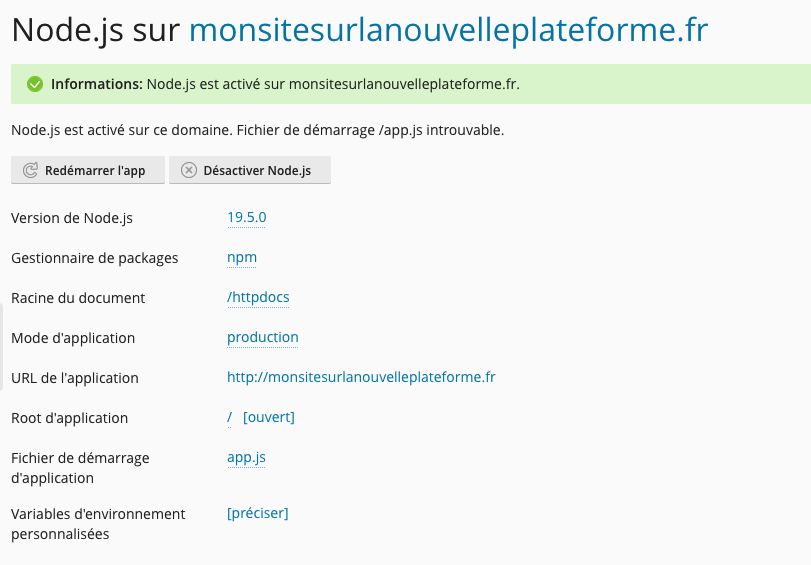
If needed, you can restart the application using the Restart App button: